Every time someone comments "link?" or "send it!" on your post, there's a real person on the other end who wants what you're offering. Most creators lose that person within minutes — either the reply comes too late, or it never comes at all.
This tutorial walks you through setting up your first ProfileFlow automation rule from scratch. By the end, you'll have a live rule that fires a personalised DM the moment someone comments a keyword on your post — and optionally captures their email before delivering your lead magnet.
What you'll need:
- A ProfileFlow account (free trial, no card required)
- An Instagram Business or Creator account
- 5 minutes
Step 1: Connect Your Instagram Account
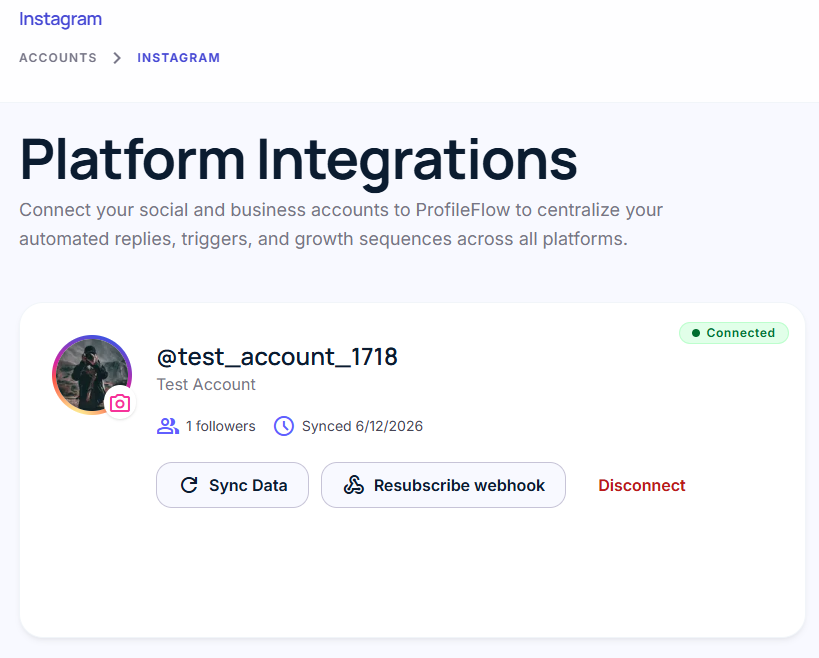
After signing into ProfileFlow, head to Settings → Instagram Accounts and click Connect Account.
You'll be redirected to Instagram's Business Login flow. Grant the required permissions — ProfileFlow needs access to read comments on your media and send DMs on your behalf. Both are standard Meta permissions for automation tools.
Once authorised, your account appears in the list with a green Active badge.
> One workspace, many accounts. If you manage multiple Instagram profiles (your own, a brand account, a client), connect them all — each one gets its own rules and lead inbox.
Step 2: Create Your First Automation Rule
Navigate to Automations → Rules and click Create Rule.
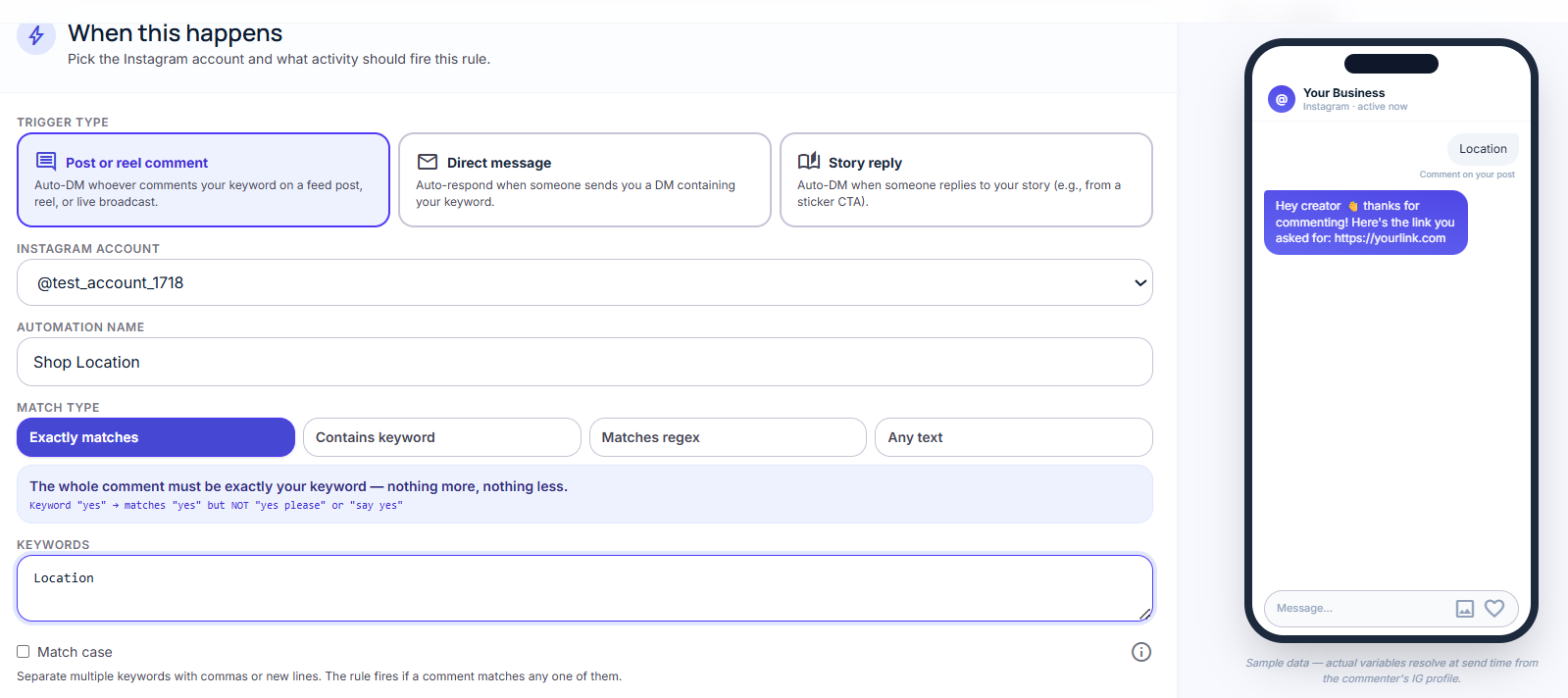
Give the rule a name
Something descriptive works best: "Free PDF — Comment 'guide'" or "Pricing enquiries — Comment 'price'". You'll thank yourself when you have ten rules.
Set your trigger keyword
In the Keywords field, type the word or phrase you want to watch for. For this example use guide.
Set Match Type to CONTAINS — this catches "guide", "send the guide", "I want the guide", and any other variation.
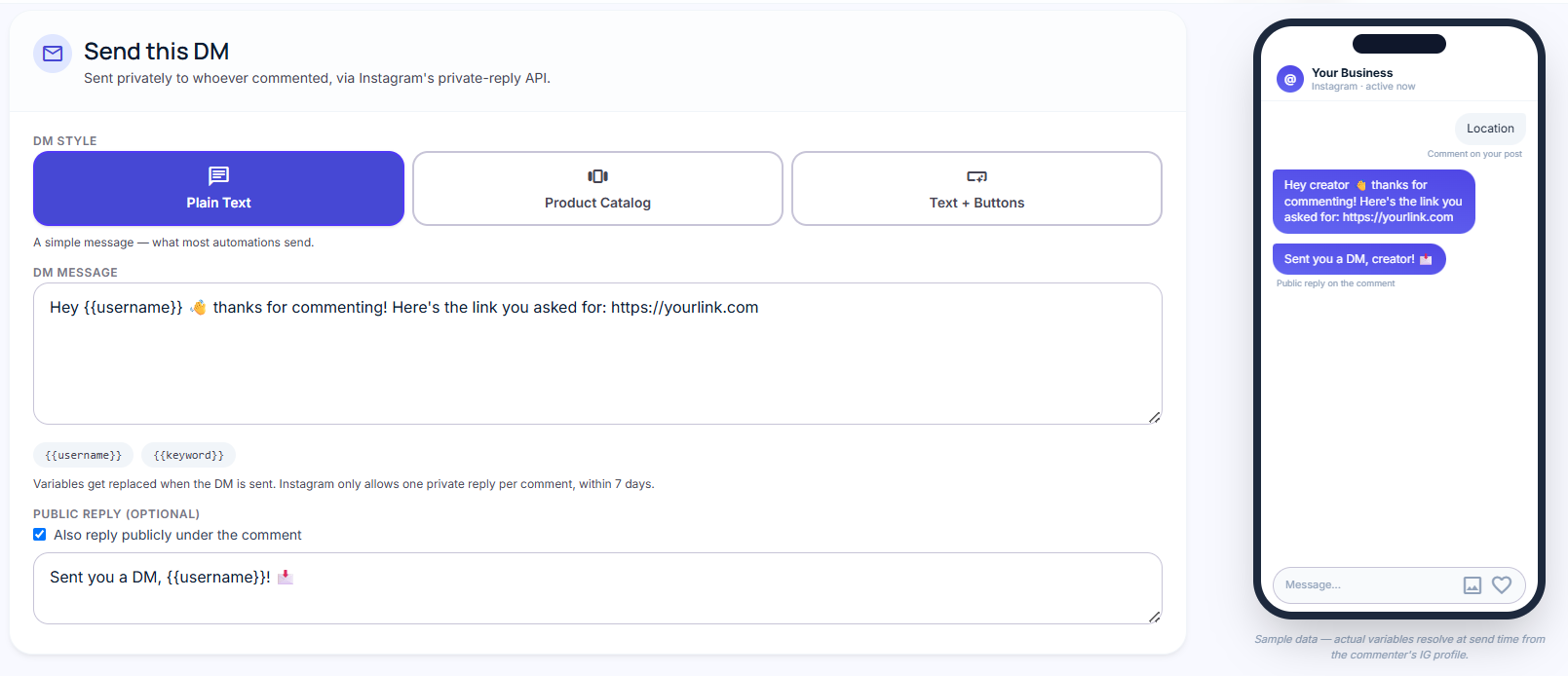
Write your DM template
This is the message ProfileFlow sends automatically when someone triggers the rule. Keep it warm and direct:
Hey {{commenter_username}}! 👋

Thanks for commenting — here's the free guide you asked for:

[YOUR LINK HERE]

Let me know if you have any questions!
> Tip: You don't have to use a link immediately. Start with a simple "Thanks for your interest — I'll DM you the details shortly!" to warm up the conversation before sending assets.
Choose which posts to watch
Under Media Scope, select:
- All posts — the rule fires on any new comment across your entire feed
- Specific posts — paste in the post URLs you want to target (great for launch campaigns)
For your first rule, All posts is the easiest starting point.
Step 3: Activate the Rule
Click Save as Draft to review everything, then hit Activate.
Your rule is now live. ProfileFlow is listening to new comments on your account in real time via Instagram's webhook.
Test it yourself: Open Instagram, find one of your posts, and comment the trigger keyword from a secondary account or ask a friend to comment it. Within seconds, the secondary account should receive your DM.
The Trigger Count on the rule card increments every time a DM fires successfully. You'll also see the run appear in the Activity tab with the commenter's username, timestamp, and status.
Step 4 (Optional): Add Lead Capture
If you want to collect an email or phone number before delivering your asset, turn your rule into a lead capture funnel.
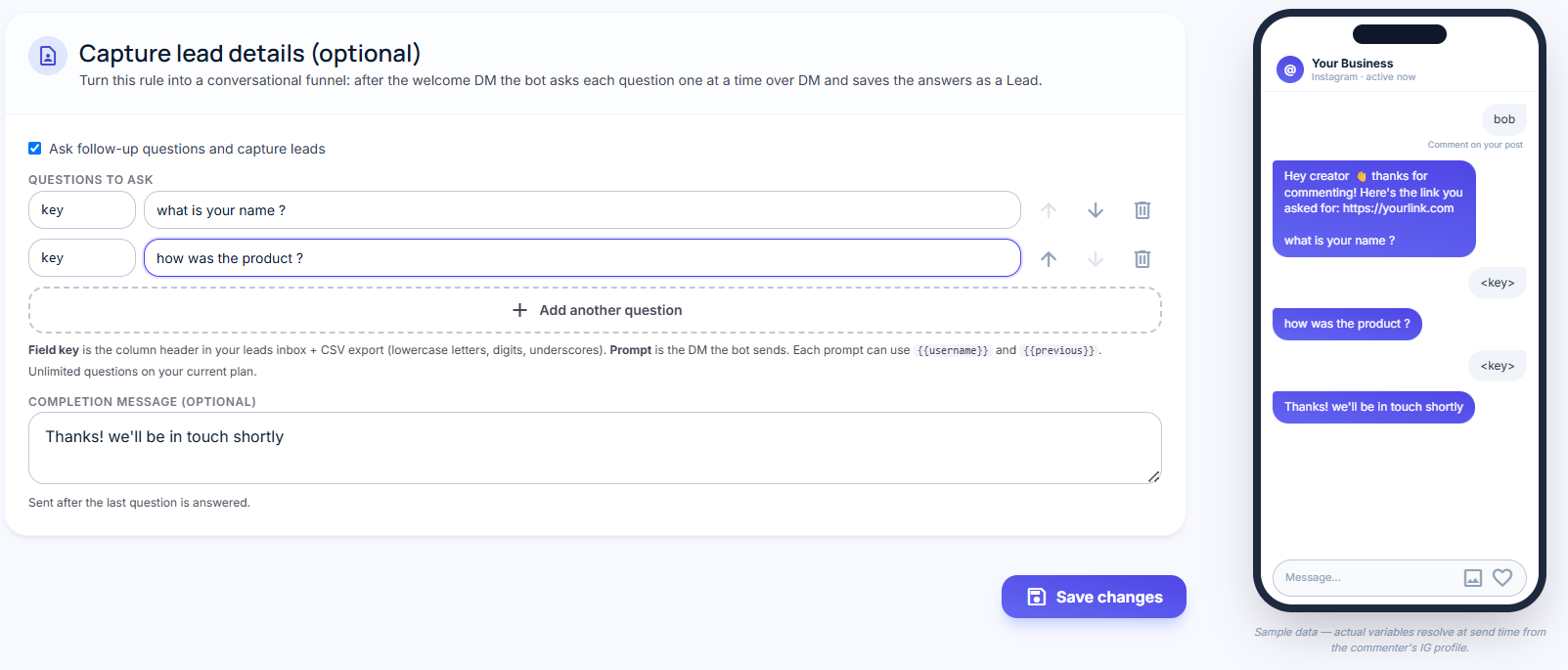
In the rule editor, scroll to Lead Capture Questions and click Add Question:
| Field Key | Prompt |
|---|---|
name | What's your first name? |
email | And what's the best email for you? |
ProfileFlow will ask these questions in sequence via DM before sending the final asset link. The conversation looks like this from the follower's perspective:
You:        Hey! Thanks for commenting "guide" 👋
            What's your first name?

Follower:   Sarah

You:        Nice to meet you, Sarah! What's the best email for you?

Follower:   sarah@example.com

You:        Perfect — here's your free guide: [LINK]
            Check your inbox for more tips!
Once Sarah answers both questions, she appears in your Leads inbox with her name, email, Instagram username, and the timestamp — ready to export or connect to your CRM.
Step 5: Watch the Leads Arrive
Head to Leads in the left sidebar. Every completed conversation materialises here as a row.
From this view you can:
- Export to CSV — download your full lead list for your email platform
- Filter by rule — see which automation is performing best
- Click a username — jump to the Instagram profile directly
What to Do Next
You've built your first automation. Here are three things to try this week:
1. Add a public reply In the rule settings, enable Public Reply and write a short comment reply ("Check your DMs! 📩"). This signals to everyone browsing your comments that you respond — which increases the trigger rate.
2. Try the Flow Builder For more complex conversations — branching based on replies, qualifying questions, multiple CTAs — open the Flow Builder and design a visual DM flow. The Flow Builder supports quick-reply buttons, wait delays, and conditional branching.
3. Create a Lead Magnet
Go to Assets → New Asset and upload your PDF, add a Calendly link, or drop in a discount code. Attach it to your rule as a Lead Magnet — ProfileFlow delivers it automatically via the {{magnet}} variable in your DM template.
Troubleshooting
Rule is active but no DMs are firing Check that the comment you tested matches the keyword exactly (or contains it, depending on your match type). Also verify the Instagram account status is Active — an expired token shows a yellow warning.
DMs are sending but leads aren't being captured Make sure the follower is replying in the same DM thread, not a new message thread. Lead capture only works within an active conversation window.
I see "Automation Failed" in the activity log Most failures are caused by an expired Instagram access token. Go to Settings → Instagram Accounts, disconnect, and reconnect to refresh the token.
Now that your first rule is live, you have a system that works while you sleep. Every comment is a potential lead. ProfileFlow makes sure none of them slip through.